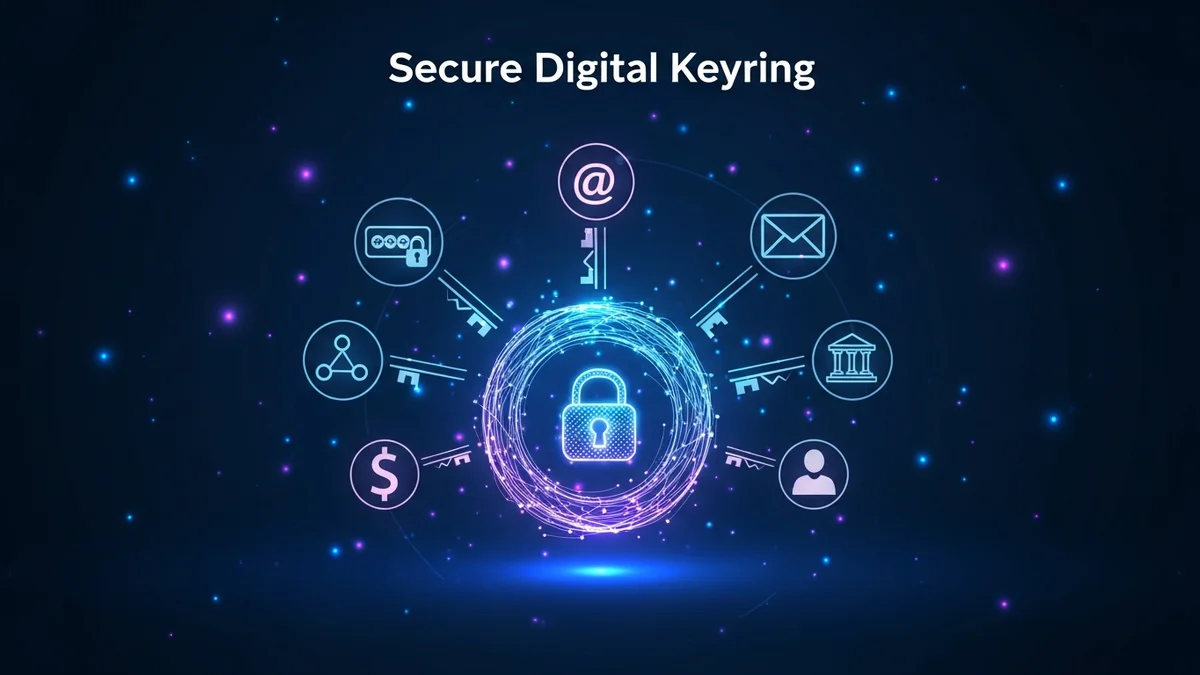
If you’re still reusing the same few passwords across multiple accounts, you’re not alone—but you are at risk. According to Verizon’s Data Breach Investigations Report, stolen or weak credentials remain one of the most common causes of data breaches year after year. With billions of usernames and passwords exposed in incidents like LinkedIn, Adobe, and Collection #1, strong password hygiene is no longer optional.
This beginner’s guide explains how to use a password manager, why it’s one of the smartest security upgrades you can make, and how to pair it with breach monitoring tools like LeakDefend for maximum protection.
What Is a Password Manager and Why Do You Need One?
A password manager is a secure application that stores your login credentials in an encrypted vault. Instead of remembering dozens (or hundreds) of passwords, you only need to remember one master password.
Here’s why that matters:
- Password reuse is dangerous. If one account is breached, attackers try the same password on other sites.
- Humans create weak passwords. Simple patterns like "Password123" or birthdays are easy to crack.
- Data breaches are constant. In 2023 alone, billions of records were exposed worldwide.
A password manager solves these problems by generating long, random passwords for every account and storing them securely. Even if one service gets hacked, your other accounts remain protected because each password is unique.
Step 1: Choose and Install a Reputable Password Manager
The first step in learning how to use a password manager is selecting one. Look for these features:
- End-to-end encryption
- Zero-knowledge architecture (the provider can’t see your data)
- Multi-device sync
- Built-in password generator
- Two-factor authentication (2FA)
Once you choose a provider, install the app on your computer and smartphone. Most password managers also offer a browser extension, which makes saving and autofilling passwords seamless.
During setup, you’ll create a master password. This is the only password you must remember. Make it long and unique—ideally a passphrase of 12–16+ characters. Do not reuse an existing password here.
Step 2: Import or Add Your Existing Passwords
After installation, you’ll begin adding your accounts to the vault.
You can do this in two ways:
- Import saved browser passwords (quick but review them carefully)
- Manually log into each account and let the password manager save it
This is also the perfect time to clean house. If you notice duplicate or weak passwords, flag them for replacement.
Many password managers include a “security audit” feature that identifies:
- Reused passwords
- Weak passwords
- Old passwords that haven’t been changed in years
Think of this as your digital spring cleaning.
Step 3: Generate Strong, Unique Passwords for Every Account
This is where the real security upgrade happens.
Instead of inventing passwords yourself, use the built-in password generator. A strong password should:
- Be at least 12–16 characters long
- Include uppercase and lowercase letters
- Contain numbers and symbols
- Avoid dictionary words
For example, a generated password might look like: tQ$7vL9!zP2#rK8. It’s impossible to memorize—but you don’t need to.
Update important accounts first:
- Email accounts
- Banking and financial services
- Cloud storage
- Social media
- Shopping sites with saved payment methods
Email accounts are especially critical. If someone gains access to your email, they can reset passwords for nearly all other services.
Step 4: Enable Two-Factor Authentication (2FA)
A password manager dramatically improves security—but pairing it with two-factor authentication makes your accounts significantly harder to compromise.
2FA requires a second verification step, such as:
- A code from an authenticator app
- A hardware security key
- A biometric scan
Even if a password is exposed in a breach, 2FA can block attackers from logging in.
Major breaches like the 2019 Facebook data exposure and the massive Yahoo breach affecting 3 billion accounts show that companies can fail—but layered security protects you individually.
Step 5: Monitor for Data Breaches
Using a password manager doesn’t make you immune to data breaches. It limits damage—but you still need visibility.
When companies are hacked, exposed credentials often circulate on dark web marketplaces. That’s where monitoring tools come in.
Tools like LeakDefend continuously monitor breach databases and alert you if your email address appears in a newly discovered leak. If you receive an alert, you can immediately update the affected password in your password manager before attackers exploit it.
LeakDefend.com lets you check all your email addresses for free, helping you understand whether your data has already been exposed. Combining a password manager with breach monitoring gives you both prevention and early detection.
Common Beginner Mistakes to Avoid
As you learn how to use a password manager, watch out for these pitfalls:
- Keeping weak passwords "for now" instead of replacing them immediately
- Reusing your master password anywhere else
- Ignoring breach alerts
- Not backing up recovery codes for 2FA
Your master password should be unique and never shared. Consider writing it down and storing it securely offline when you first set up your vault.
And remember: even with a password manager, you still need awareness. If your email is compromised in a breach, attackers may target you with phishing attempts. Staying informed through services like LeakDefend adds an important layer of protection.
🔒 Check If Your Email Was Breached — Monitor up to 3 email addresses for free with LeakDefend. Start Your Free Trial →
Conclusion: A Password Manager Is Your First Line of Defense
If you’re serious about protecting your digital life, learning how to use a password manager is one of the highest-impact steps you can take. It eliminates password reuse, strengthens every account, and reduces the fallout from inevitable data breaches.
But security works best in layers. Use a password manager to generate and store strong passwords. Enable two-factor authentication wherever possible. And monitor your email addresses with tools like LeakDefend so you’re alerted the moment your data appears in a breach.
Cyber threats aren’t slowing down—but with the right tools and habits, you can stay several steps ahead.