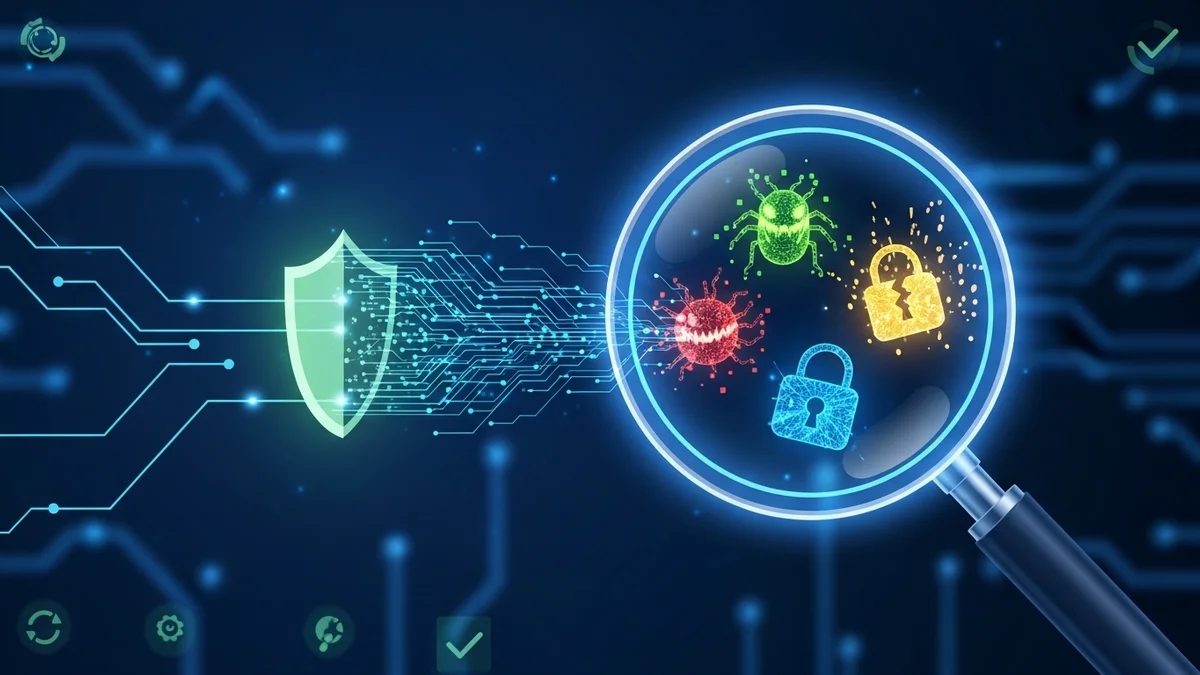
Malware infections are more common than most people realize. According to AV-TEST, security researchers detect more than 450,000 new malicious programs every day. From spyware and ransomware to keyloggers and banking trojans, modern malware is designed to stay hidden while stealing data, slowing down your device, or spying on your activity.
If your computer feels sluggish, displays unexpected pop-ups, or behaves strangely, it’s time to take action. The good news? You don’t need expensive software to get started. In this guide, you’ll learn how to check for malware on your computer using reliable free tools — and what to do if you find something suspicious.
1. Watch for the Warning Signs of Malware
Before running scans, look for common symptoms of infection. Malware often leaves clues:
- Slow performance or frequent freezing
- Unexpected pop-ups or browser redirects
- New programs you don’t remember installing
- Disabled antivirus or security settings
- Unusual network activity
For example, ransomware attacks like WannaCry (which affected over 200,000 computers across 150 countries in 2017) locked users out of their systems entirely. Other malware operates more quietly, harvesting passwords and financial information without obvious symptoms.
If you notice even one of these red flags, it’s worth running a thorough check.
2. Run a Full Scan with Built-In Security Tools
Start with what’s already on your computer. Both Windows and macOS include built-in protection:
- Windows: Microsoft Defender Antivirus (formerly Windows Defender)
- Mac: XProtect and built-in malware removal tools
On Windows, open Windows Security, go to Virus & Threat Protection, and select Full Scan. This checks every file and running program, not just the most common threat locations.
While built-in tools are surprisingly effective — Microsoft Defender consistently scores high in independent lab tests — no single scanner catches 100% of threats. That’s why it’s smart to use a second opinion.
3. Use Trusted Free Malware Scanners
Several reputable cybersecurity companies offer free on-demand scanners that complement your existing antivirus:
- Malwarebytes Free: Excellent for detecting adware, spyware, and potentially unwanted programs (PUPs).
- Bitdefender Virus Scanner: Lightweight and strong detection rates.
- ESET Online Scanner: A powerful browser-based scan option.
- Kaspersky Virus Removal Tool: Good at detecting deeply embedded threats.
Download these tools only from official websites. Fake antivirus downloads are a common malware distribution method.
Run a full system scan and carefully review the results. If malware is detected, follow the removal instructions and restart your computer when prompted.
4. Check Your Browser and Startup Programs
Many infections hide in browsers or launch automatically at startup.
Inspect browser extensions:
- Remove extensions you don’t recognize.
- Reset your browser settings if redirects persist.
Review startup programs:
- On Windows, open Task Manager → Startup tab.
- Disable unknown or suspicious entries.
Adware and credential-stealing malware often attach themselves to browsers to capture login details. Major breaches, such as the 2013 Yahoo incident affecting 3 billion accounts, show how valuable stolen credentials can be. Even if malware doesn’t encrypt your files, it may silently harvest sensitive data.
That’s why removing malware is only part of the solution — you should also assume exposed passwords may need changing.
5. Scan for Compromised Accounts and Data Exposure
If your computer was infected, there’s a real chance your email addresses, passwords, or financial details were exposed.
Cybercriminals frequently deploy info-stealing malware designed to extract browser-saved passwords and send them to command-and-control servers. These credentials are then sold on dark web marketplaces.
After cleaning your device:
- Change passwords for important accounts.
- Enable two-factor authentication (2FA).
- Check whether your email addresses have appeared in known data breaches.
Tools like LeakDefend can monitor your email addresses for breach exposure and alert you if your data appears in leaked databases. Even if malware wasn’t responsible, separate breaches could still put your accounts at risk.
LeakDefend.com lets you check all your email addresses for free and monitor them continuously, which adds an extra layer of protection beyond antivirus software.
6. When to Consider a Deeper Cleanup
If malware keeps returning or your system remains unstable, you may need stronger measures:
- Boot into Safe Mode and rerun scans.
- Use a bootable rescue disk from a reputable antivirus vendor.
- Back up important files and perform a clean OS reinstall.
A clean installation may sound drastic, but in severe infections — particularly rootkits — it’s sometimes the only way to guarantee complete removal.
Afterward, update your operating system, install reputable security software, and keep automatic updates enabled. Many high-profile attacks exploit outdated systems. For example, the WannaCry ransomware spread primarily through unpatched Windows vulnerabilities.
🔒 Check If Your Email Was Breached — Monitor up to 3 email addresses for free with LeakDefend. Start Your Free Trial →
Conclusion: Stay Proactive, Not Reactive
Knowing how to check for malware on your computer is an essential digital skill. Start with built-in security tools, follow up with trusted free scanners, inspect your browser and startup programs, and assume credentials may need updating after an infection.
Remember: malware removal is only half the battle. Monitoring your accounts for data breaches is just as important. Services like LeakDefend help you stay ahead of identity theft by alerting you when your information appears in compromised databases.
Cyber threats aren’t going away — but with the right tools and habits, you can dramatically reduce your risk. Run regular scans, keep your system updated, and monitor your digital footprint. A few proactive steps today can prevent major damage tomorrow.