If you reuse passwords, write them in a notebook, or rely on memory alone, you’re not alone. Studies show that more than 60% of people reuse passwords across multiple accounts. That’s a serious risk. When one website gets breached, attackers often try the same email and password combination on other platforms — a tactic known as credential stuffing.
This is exactly why learning how to use a password manager is one of the smartest cybersecurity decisions you can make. A password manager creates strong, unique passwords for every account and stores them securely, so you don’t have to remember them. In this beginner’s guide, you’ll learn how password managers work, how to set one up, and how to use it safely.
What Is a Password Manager and Why You Need One
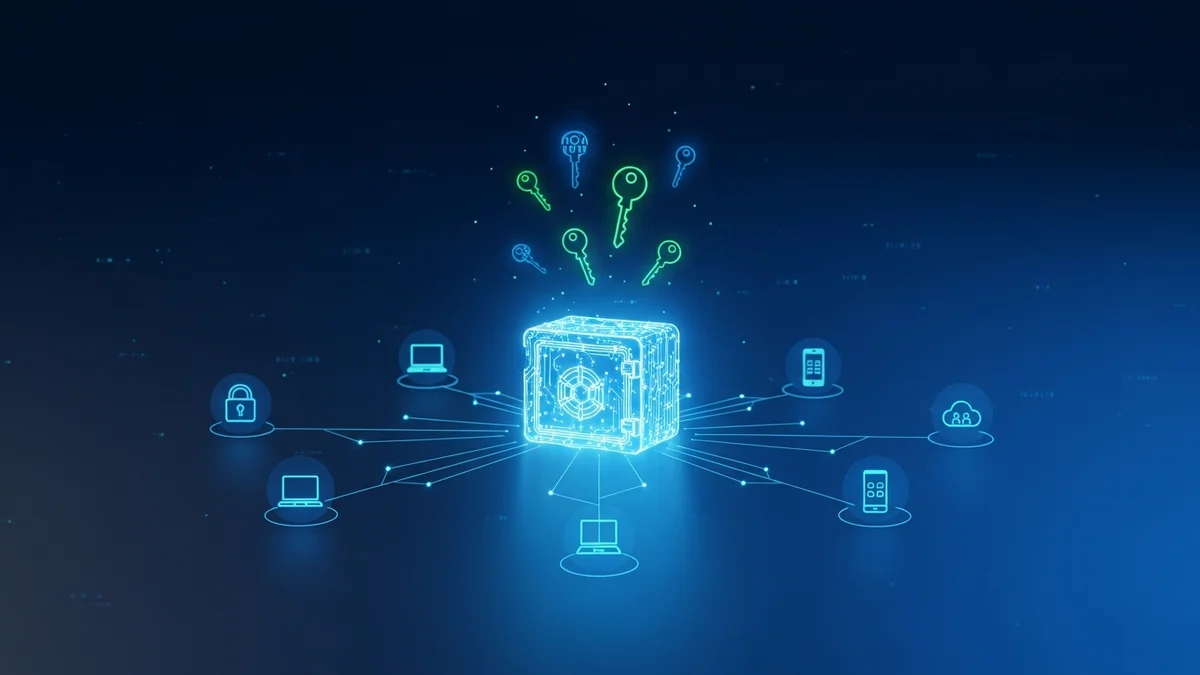
A password manager is a secure application that stores your login credentials in an encrypted vault. Instead of remembering dozens (or hundreds) of passwords, you only need to remember one master password.
Why is this so important? Because data breaches are constant. Major companies like LinkedIn, Dropbox, and Yahoo have suffered breaches affecting hundreds of millions of users. In many cases, stolen credentials were later used to break into other accounts.
A password manager helps you:
- Generate strong, unique passwords for every site
- Store passwords securely with encryption
- Auto-fill login forms safely
- Sync across devices
- Detect compromised credentials
Even if a single service is breached, your other accounts remain protected because each password is different.
Step 1: Choose the Right Password Manager
There are several reputable password managers available, including Bitwarden, 1Password, Dashlane, and built-in managers from Google and Apple. When choosing one, look for:
- Strong encryption (AES-256 is industry standard)
- Zero-knowledge architecture (the company cannot read your vault)
- Multi-factor authentication (MFA)
- Cross-device syncing
- Security audits by independent firms
Free plans are often sufficient for individuals, but premium versions typically include breach monitoring and advanced security tools.
While password managers protect your credentials, they don’t alert you when your email address appears in a new data breach. That’s where tools like LeakDefend come in. LeakDefend monitors your email addresses and notifies you if they appear in known breaches, giving you an early warning to change passwords immediately.
Step 2: Set Up Your Master Password the Right Way
Your master password is the key to your entire vault. It must be strong and unique.
Follow these best practices:
- Use at least 14–16 characters
- Combine unrelated words into a passphrase (e.g., "BlueCoffeeTrainRiver")
- Avoid personal information
- Never reuse it anywhere else
Many password managers also allow you to enable multi-factor authentication (MFA). This adds a second verification step, such as a mobile authenticator app or hardware security key. Enable MFA immediately after setup for maximum protection.
Step 3: Import and Generate Strong Passwords
Once installed, your password manager can import saved passwords from your browser. However, imported passwords are often weak or reused.
Start upgrading them:
- Visit each important account (email, banking, social media)
- Use the password generator to create a new random password
- Save it in your vault
A strong password should:
- Be at least 16 characters long
- Include uppercase, lowercase, numbers, and symbols
- Be completely random
Modern password managers can create 20+ character passwords instantly. Since you don’t have to remember them, there’s no downside to maximum complexity.
This step dramatically reduces your risk from credential stuffing attacks, which are responsible for millions of account takeovers every year.
Step 4: Use Auto-Fill Safely Across Devices
One of the biggest advantages of a password manager is secure auto-fill. When you visit a login page, the manager detects the site and fills in your credentials.
To use auto-fill securely:
- Install the official browser extension
- Only download apps from trusted app stores
- Keep your software updated
- Lock your vault when not in use
Password managers also protect against phishing in many cases. If you land on a fake website that looks like your bank but has a slightly different domain, your manager won’t auto-fill because the URL doesn’t match. That’s a subtle but powerful layer of defense.
However, phishing and data breaches still happen. Even strong passwords can’t protect you if criminals already have your email address and are targeting you directly. Services like LeakDefend.com let you check up to three email addresses for free to see if they’ve been exposed in known breaches.
Step 5: Monitor for Breaches and Maintain Good Hygiene
Using a password manager is not a "set it and forget it" solution. Good password hygiene includes:
- Regularly reviewing stored passwords
- Updating weak or reused passwords
- Deleting unused accounts
- Enabling MFA everywhere possible
According to IBM’s Cost of a Data Breach Report, the average data breach costs organizations millions — and compromised credentials remain one of the leading causes. For individuals, the cost can be identity theft, financial fraud, or locked accounts.
This is why pairing a password manager with breach monitoring is critical. If your email appears in a newly discovered leak, you can immediately update affected accounts before attackers exploit them. LeakDefend provides real-time breach alerts so you can act fast instead of finding out months later.
Common Mistakes to Avoid
- Reusing your master password anywhere else
- Skipping multi-factor authentication
- Ignoring breach alerts
- Storing your master password in plain text
A password manager is extremely secure when used properly. But its effectiveness depends on your habits.
Conclusion: A Password Manager Is Your First Line of Defense
If you’re serious about protecting your digital life, learning how to use a password manager is essential. It eliminates password reuse, strengthens every account, and protects you from widespread credential-based attacks.
But security doesn’t stop there. Data breaches are inevitable — preparation is what matters. Combine a password manager with proactive monitoring from tools like LeakDefend to ensure you’re alerted the moment your data is exposed.
Strong passwords prevent break-ins. Breach monitoring helps you respond quickly. Together, they form a powerful, practical defense for everyday internet users.
Start today. Your future self — and your online accounts — will thank you.