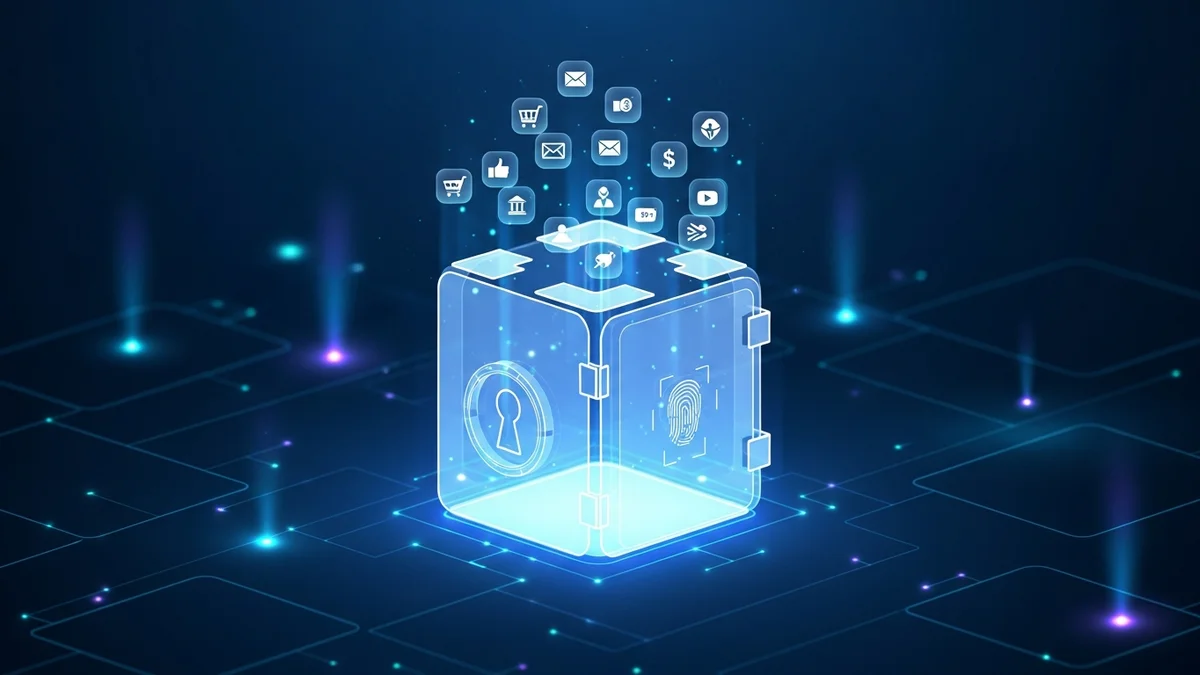
Weak and reused passwords are one of the biggest security risks online. According to Verizon’s Data Breach Investigations Report, stolen or compromised credentials are involved in the majority of hacking-related breaches. From LinkedIn and Dropbox to Facebook and Adobe, billions of leaked passwords have circulated on the dark web over the past decade.
If you’re still reusing the same password across multiple sites or keeping them in a notes app, it’s time for an upgrade. This beginner’s guide explains how to use a password manager, why it matters, and how it dramatically reduces your risk of account takeover.
What Is a Password Manager and Why Do You Need One?
A password manager is a secure application that stores your login credentials in an encrypted vault. Instead of memorizing dozens of complex passwords, you only need to remember one master password.
Here’s why that matters:
- People reuse passwords. A 2019 Google survey found that 65% of people reuse passwords across multiple sites.
- Breaches are constant. Billions of credentials have been exposed in data leaks, making password reuse extremely dangerous.
- Brute-force attacks are automated. Hackers use bots to try leaked passwords across hundreds of websites in minutes.
If one website gets breached and you’ve reused that password elsewhere, attackers can access your email, banking, or social media accounts. A password manager prevents this by generating and storing unique passwords for every account.
And while a password manager protects your credentials, tools like LeakDefend add another layer of defense by monitoring whether your email addresses appear in known data breaches.
Step 1: Choose a Reputable Password Manager
The first step in learning how to use a password manager is selecting one. Look for these key features:
- Strong encryption (AES-256)
- Zero-knowledge architecture (the company cannot read your vault)
- Two-factor authentication (2FA)
- Cross-device syncing
- Security audit or breach monitoring features
Well-known password managers include 1Password, Bitwarden, Dashlane, and LastPass. Most offer browser extensions and mobile apps that automatically fill in your credentials on websites and apps.
After choosing one, install the browser extension and mobile app to ensure seamless syncing across devices.
Step 2: Create a Strong Master Password
Your master password is the key to your entire vault. It should be:
- At least 12–16 characters long
- A mix of words or a passphrase (easier to remember, harder to crack)
- Unique and never used elsewhere
A good example format is a passphrase like: BlueCoffeeTrain!River92. Avoid common phrases, song lyrics, or personal information.
Enable two-factor authentication (2FA) immediately after setup. This ensures that even if someone guesses your master password, they cannot access your vault without your second authentication factor.
Step 3: Import or Add Your Existing Passwords
Once your vault is ready, you can:
- Import saved passwords from your browser
- Manually add important accounts (email, banking, social media)
- Update weak or reused passwords immediately
Most password managers have a built-in security dashboard that flags weak, reused, or compromised passwords.
This is especially important because many old passwords may already be circulating in breach databases. That’s where monitoring services like LeakDefend.com become valuable. You can check multiple email addresses for free to see whether your credentials were exposed in known data breaches.
Step 4: Generate Strong, Unique Passwords for Every Account
This is where password managers truly shine. Instead of inventing passwords yourself, use the built-in generator.
Best practices:
- Use at least 14–16 characters
- Include uppercase, lowercase, numbers, and symbols
- Never reuse passwords across sites
Modern password managers automatically prompt you to generate and save a new password when creating an account. They also update stored credentials when you change a password.
If a company suffers a breach — like the 2012 LinkedIn breach that exposed 165 million credentials or the 2013 Yahoo breach affecting 3 billion accounts — having unique passwords ensures only one account is at risk, not your entire digital life.
Step 5: Use Auto-Fill Safely and Enable Extra Security Features
Auto-fill saves time and reduces phishing risks by ensuring credentials are only entered on legitimate domains.
To maximize security:
- Enable biometric unlock (fingerprint or Face ID) on mobile
- Turn on breach alerts within your password manager
- Use built-in phishing protection features
- Regularly review your security dashboard
However, remember that password managers do not monitor the entire internet for leaked personal data. They typically check passwords against known breach databases, but they don’t always monitor every exposed email address or subscription account.
That’s why pairing your password manager with a monitoring tool like LeakDefend gives you broader protection. LeakDefend alerts you if your email appears in newly discovered breaches, helping you react quickly before criminals exploit your data.
Common Mistakes Beginners Should Avoid
- Storing your master password digitally in email or notes apps
- Skipping 2FA on your vault
- Ignoring breach notifications
- Failing to update compromised passwords
- Continuing to reuse passwords “just once”
Cybercriminals rely on human shortcuts. Even the strongest password manager won’t help if you ignore security warnings or keep reusing old credentials.
How Password Managers Fit Into a Broader Security Strategy
Using a password manager is one of the most impactful security upgrades you can make. But it’s not the only step.
A strong personal cybersecurity setup includes:
- A password manager with unique passwords
- Two-factor authentication on all critical accounts
- Regular software updates
- Email breach monitoring
Even large companies fall victim to credential leaks. Individuals must assume their data may eventually be exposed. Monitoring services like LeakDefend allow you to proactively check all your email addresses and receive alerts when new breaches are discovered.
🔒 Check If Your Email Was Breached — Monitor up to 3 email addresses for free with LeakDefend. Start Your Free Trial →
Conclusion: Start Using a Password Manager Today
If you’re serious about protecting your online accounts, learning how to use a password manager is essential. It eliminates password reuse, strengthens every login, and significantly reduces your exposure to credential stuffing attacks.
Data breaches aren’t rare events — they’re routine. The question isn’t whether another breach will happen, but whether your passwords will be ready when it does.
Choose a reputable password manager, create a strong master password, enable two-factor authentication, and generate unique passwords for every account. Then take it one step further by monitoring your email addresses for breaches with tools like LeakDefend.
Your digital security is only as strong as your weakest password. Make sure you don’t have one.